
Account and privacy
Update your profile, manage sign-in, download your data, and delete your account.
1Navigate to settings
Choose “Settings” in the left rail (Account, then “Settings” on a phone). “Your answers” holds Operator type, Market, and Where you found us, and each change saves on its own. Under “Account”, links lead to security, notifications, billing, and data export and deletion.
2Update your profile
For your name, company, and markets, choose any link under “Account” on the Settings page, such as “security”, then choose the “Profile” tab in the strip across the top (route /settings/profile). On a phone, the back arrow on those pages opens the account list, where Profile is the first row. Edit “Full name”, “Company”, or “Markets” (“Add market”), then choose “Save changes”. Your email is shown but locked. To change it, send us a message from Help.
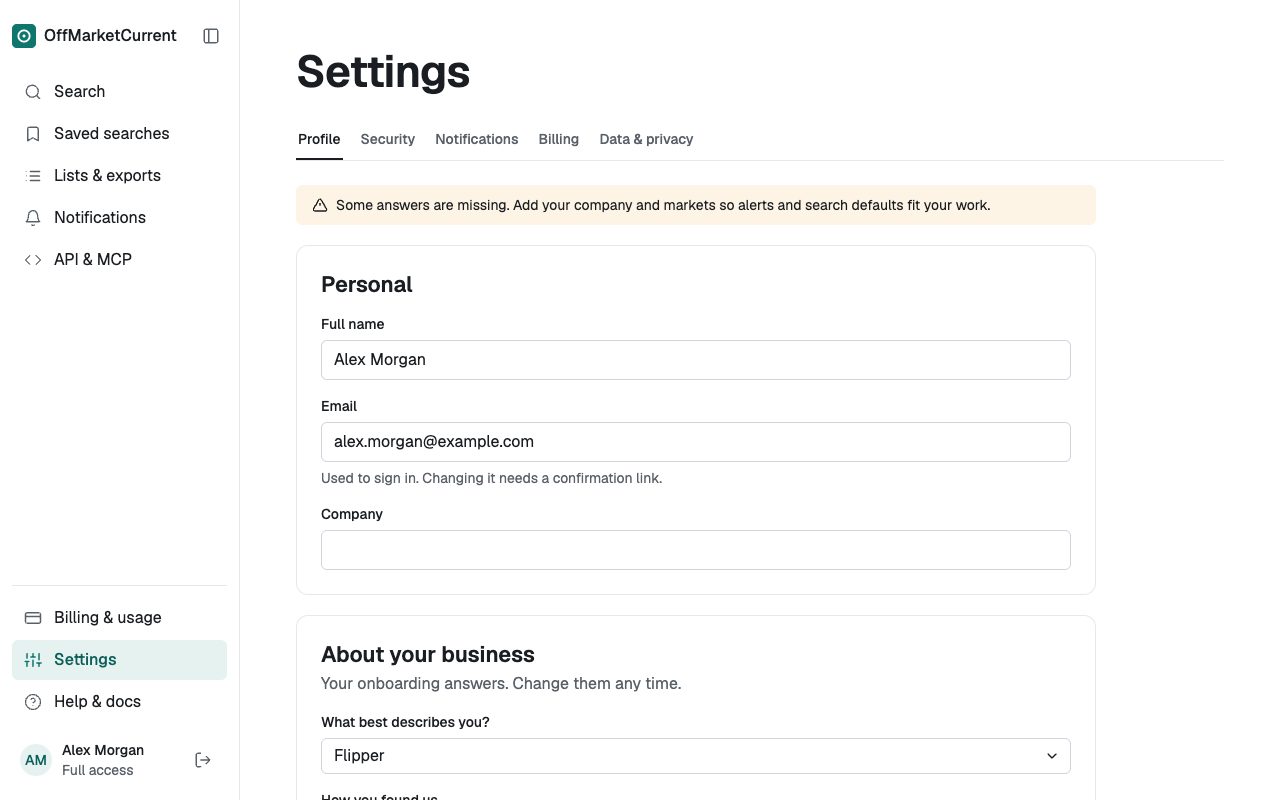
Screenshot: Settings, Profile: name, company, and your business answers 3Manage sign-in security
On “Security”, manage “Google” (“Connect” or “Disconnect”) and the “Email sign-in link” (“Turn on” or “Turn off”). Keep at least one method on. “Active sessions” lists your devices, and “Sign out everywhere else” ends the others.
4Sign out of your account
To sign out, choose the sign-out icon beside your name at the bottom of the left rail. On a phone, choose Account, then “Sign out”.
5Download your data
On “Data & privacy”, choose “Request my data” to get a ZIP of JSON and CSV files with your profile, saved searches, notification settings, and invoice history; then choose “Download ZIP”. “Privacy choices” has switches for Product analytics and Session replay, and “Save privacy choices” applies them.
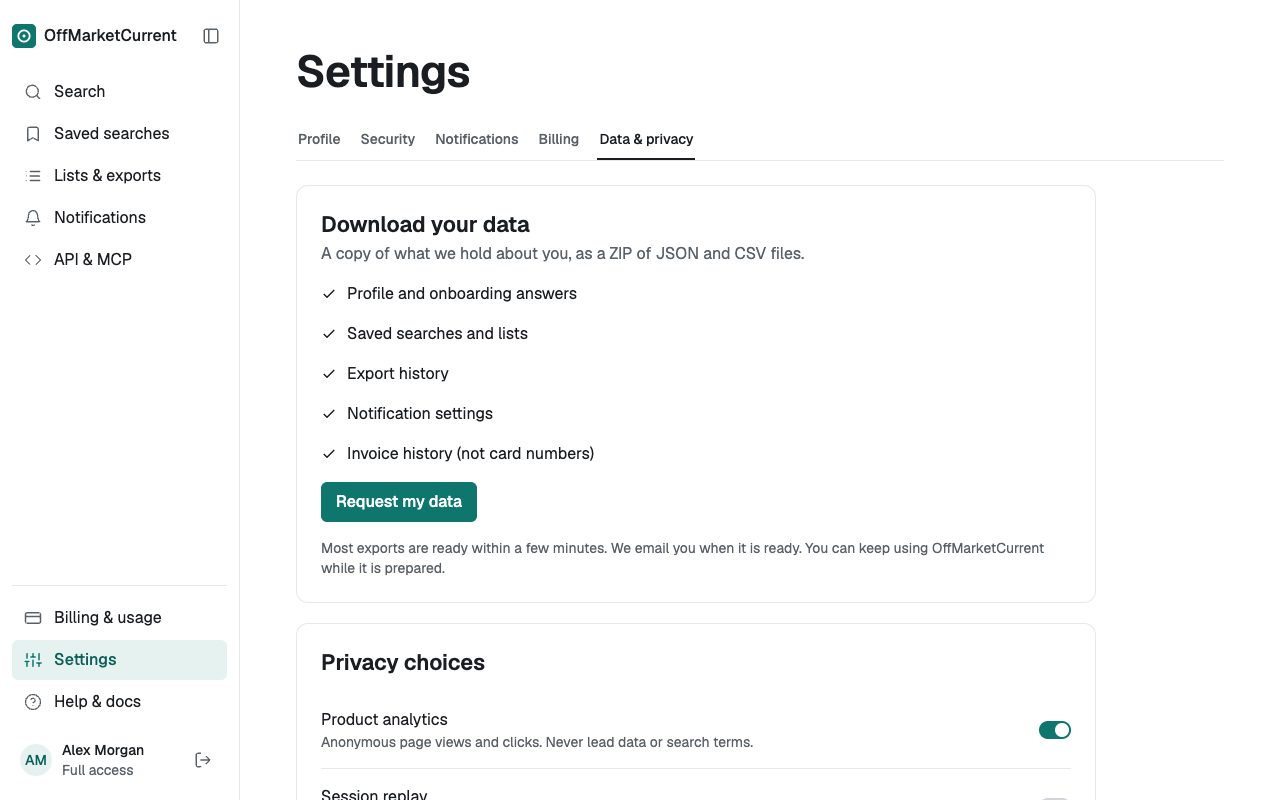
Screenshot: Settings, Data & privacy: download, privacy choices, and deletion 6Delete your account
To delete your account, choose “Delete account…” on “Data & privacy”. Sign in again if asked, type your email under “Type your email to confirm”, and choose “Delete my account”, then “Delete account” in the dialog.
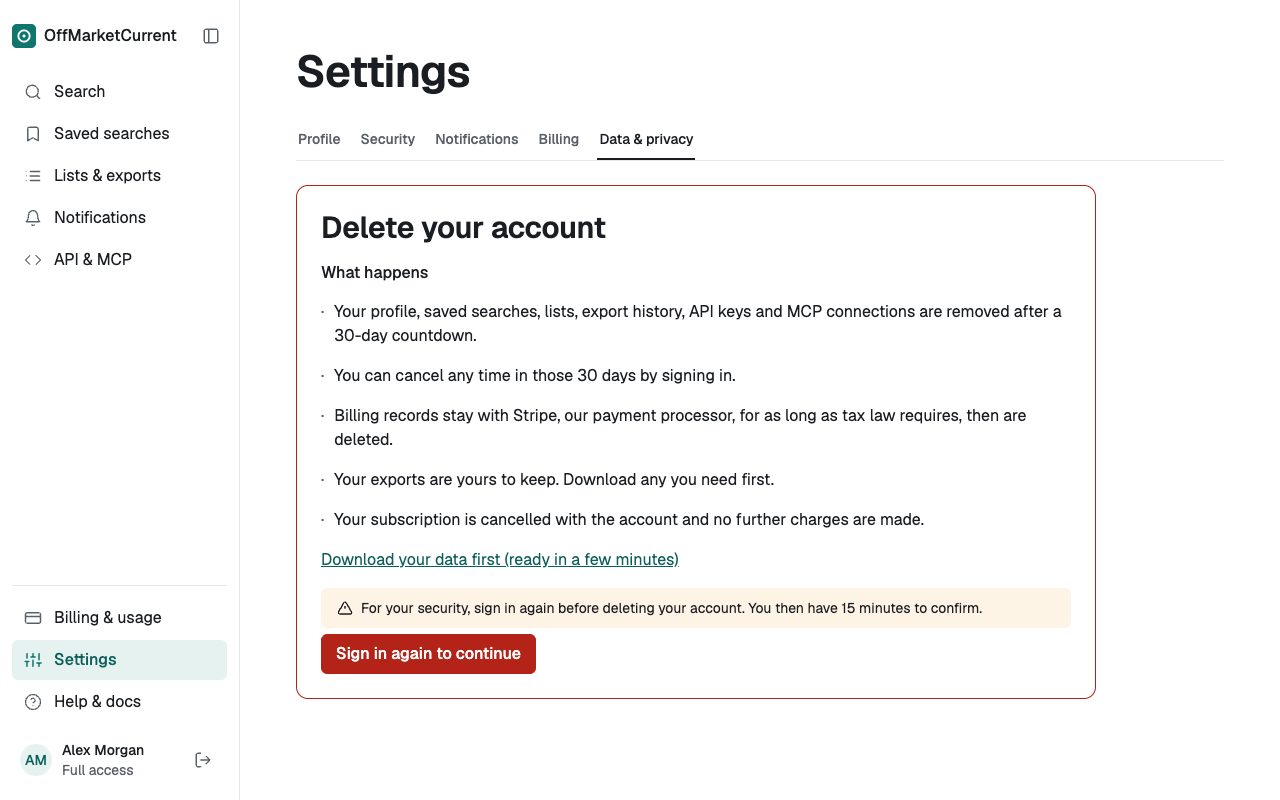
Screenshot: Delete account: what happens, then a typed email confirmation 7Confirm deletion
Deletion starts a 30-day countdown and cancels your subscription right away. Sign in during those 30 days and choose “Cancel deletion” to keep the account.
Each person signs in with their own account. To add a teammate to your plan, message the team from Help.
The Terms of Service, Privacy policy, and Billing policy are at /legal/terms, /legal/privacy, and /legal/billing.
Session replay is off unless you turn it on, and Product analytics never records lead data or search terms.
Still stuck?
A person can look at your account.