
Connect an AI assistant with MCP
Add OffMarketCurrent to Claude, Cursor, VS Code, or another MCP client, then test the connection.
1Check plan requirements
MCP needs the Pro or Scale plan. On a lower plan, API & MCP shows “API and MCP are on Pro and Scale” with a “See plans and upgrade” button.
2Choose your MCP client
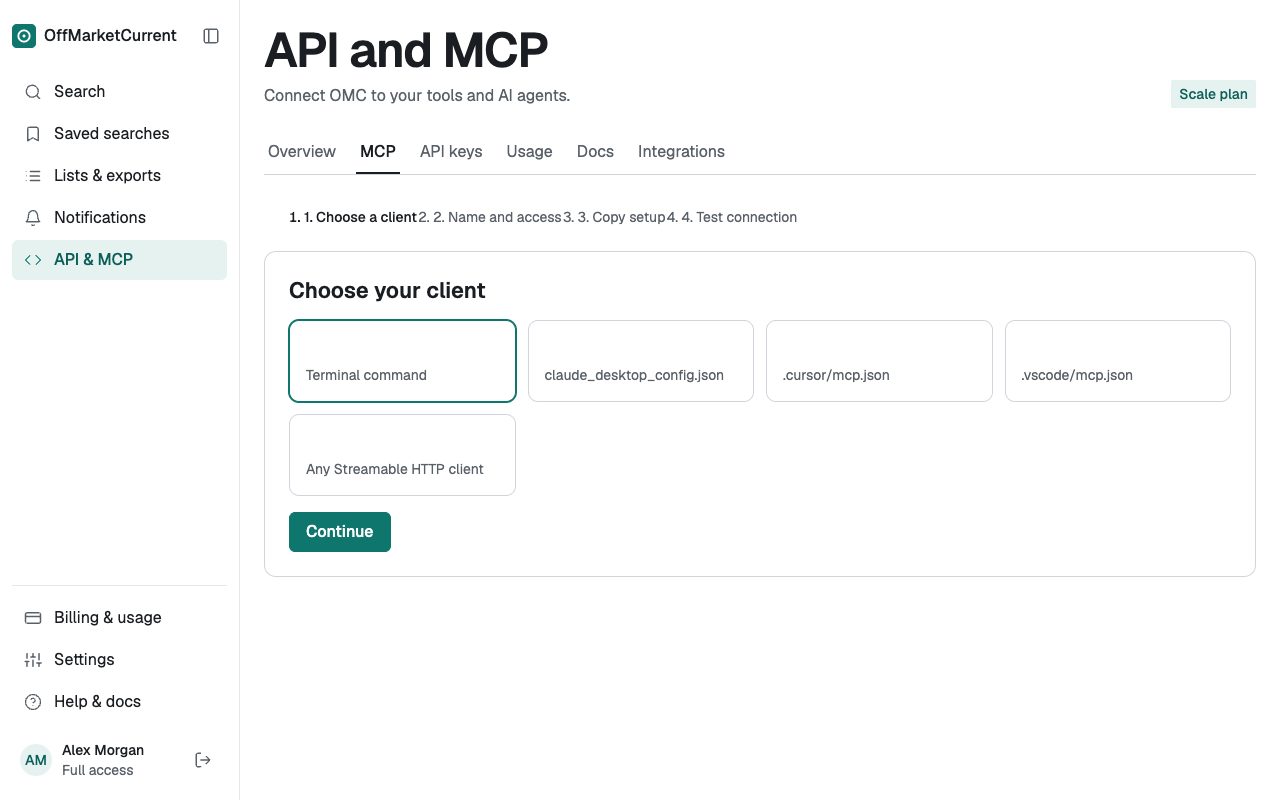
Choose “API & MCP” in the left rail, then the “MCP” tab. Under “Choose your client”, pick Claude Code, Claude Desktop, Cursor, VS Code, or Other client, and choose “Continue”.
Screenshot: API & MCP: choose your MCP client 3Create a connection
Name the connection, for example “Claude Code on my laptop”, and choose “Create connection”. Each connection has its own credential, so you can revoke one without touching the others.
4Copy your credentials
Copy the URL, which ends in /api/mcp, and the key, then run the command or save the file shown for your client. The key is shown once, so copy it now and restart the client.
5Test the connection
Choose “I added it · test the connection”, then ask your assistant to search OffMarketCurrent for tax-delinquent properties in a town you work. The page waits up to three minutes and shows “Connected” when the first request arrives.
6Use MCP tools
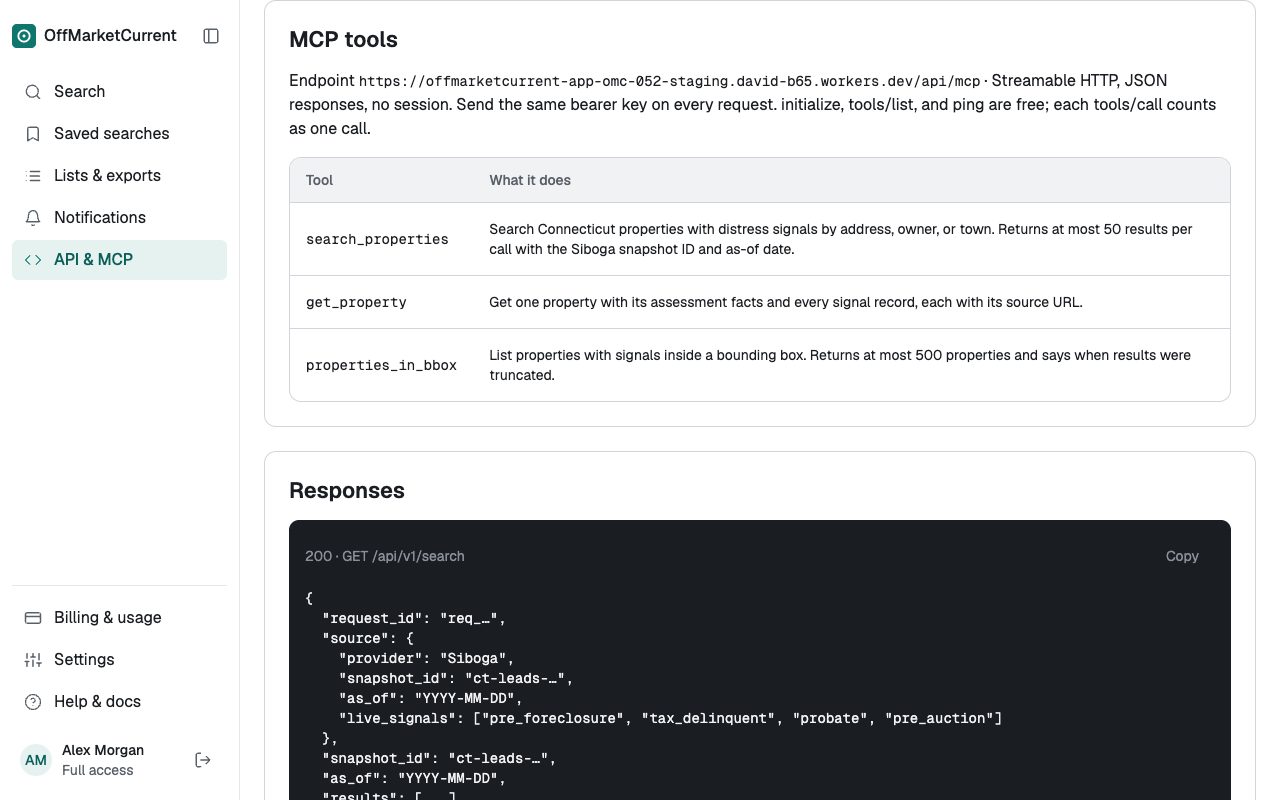
The assistant gets three tools: search_properties, get_property, and properties_in_bbox. Each tool call counts as one call against your monthly total, which REST calls share.
Screenshot: API & MCP, Docs: the three MCP tools 7Manage connections
The connection list shows each client, its last use, and its status, with “Rotate” and “Revoke” buttons. Troubleshooting help for errors such as 401 and 429 sits at the bottom of the MCP tab.
Scale includes 250,000 API and MCP calls a month under fair use.
Still stuck?
A person can look at your account.