
Property evidence and data freshness
Read the evidence for a lead, its source link, the facts on file, and how current the data is.
1Open a lead detail
Select a lead on Search, then choose “Open detail” in its side panel. The page opens with the address, the town and ZIP code, a tag for each signal on the lead such as “Tax delinquent”, “Copy address”, “Directions”, and “Alerts”, which opens Saved searches. On a phone, “Alerts” sits in the top bar.
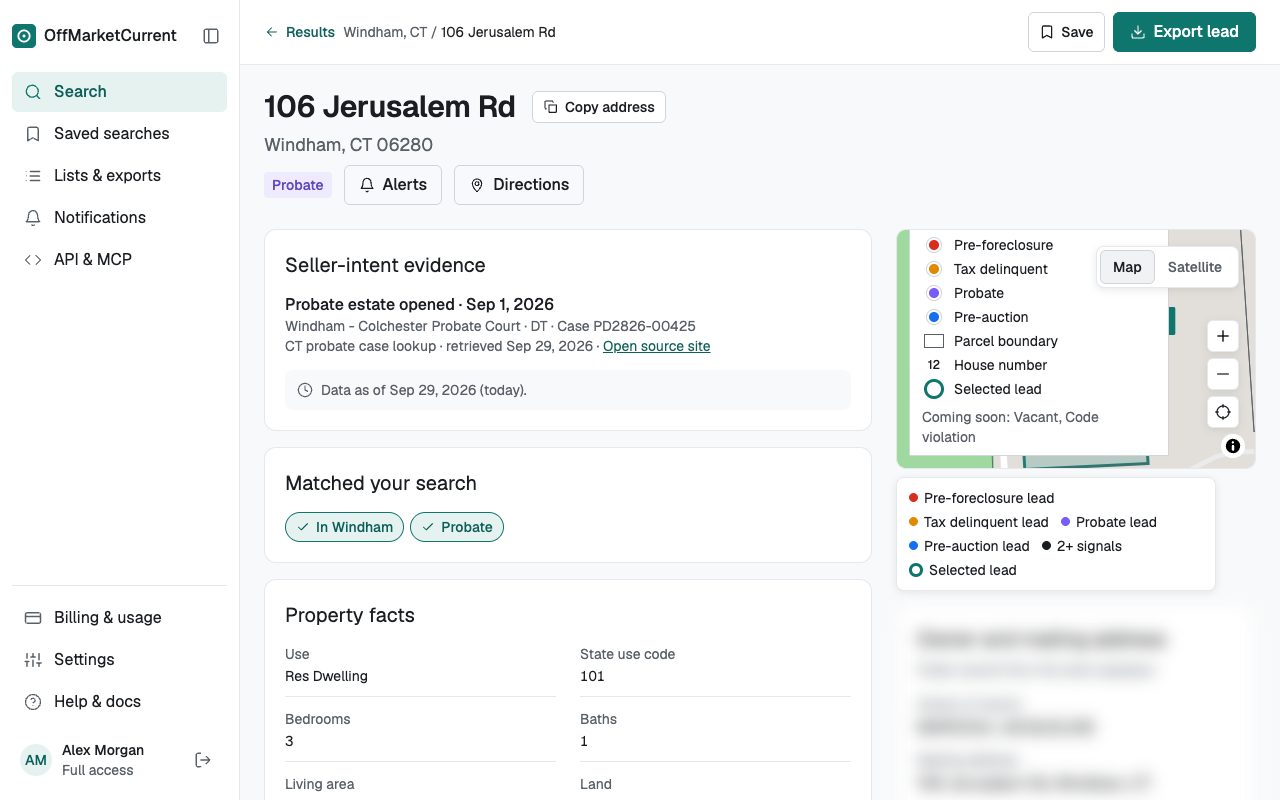
Screenshot: Lead detail: address, signal tag, and the evidence card 2Read seller evidence
”Seller-intent evidence” lists what was found, for example “Property tax unpaid” with the date it began, the amount due, and the year of the open bill, or “Foreclosure case filed” with the docket and status. Choose “Open source record” to read the record itself; where a source has no single record page, the link reads “Open source site”.
3Check data freshness
The line under the evidence reads “Data as of” with a date. If the data is more than 14 days old, the page adds “stale” and warns that newer filings may exist.
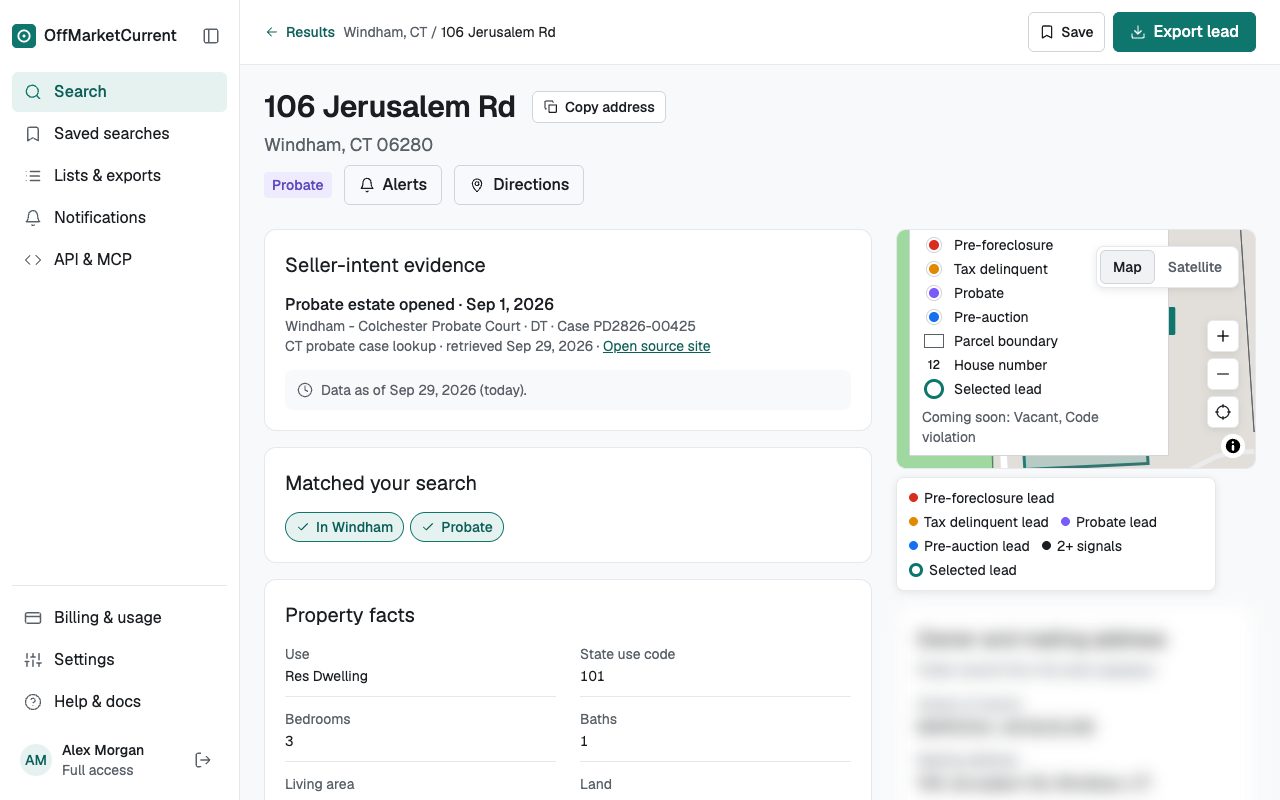
Screenshot: Lead detail: the Data as of line shows how current the record is 4Review property facts
”Property facts” lists Use, State use code, Bedrooms, Baths, Living area, Land, Year built, Assessed total, and Last sale. “Not reported” means the public record has no value; nothing is guessed to fill it.
5Find the owner
”Owner and mailing address” shows the owner of record and the mailing address from the town assessor. Export the CSV to bring owners into your own outreach tools.
6Verify sources
”Sources and freshness” names each source with its retrieval date and the lead snapshot ID. Below it, “Parcel ID” has a “Copy ID” button, and “Matched your search” shows which of your filters the lead met.
Every page that shows lead data carries its snapshot date, so you always know how current it is.
Still stuck?
A person can look at your account.