
Saved searches, saved properties, and alerts
Save a search, track new leads, add properties to lists, and choose how often to be alerted.
1Save your search
On Search, set the Place box and any filters, then choose “Save search” at the top right. A free account sees a notice that saving comes with Basic and above.
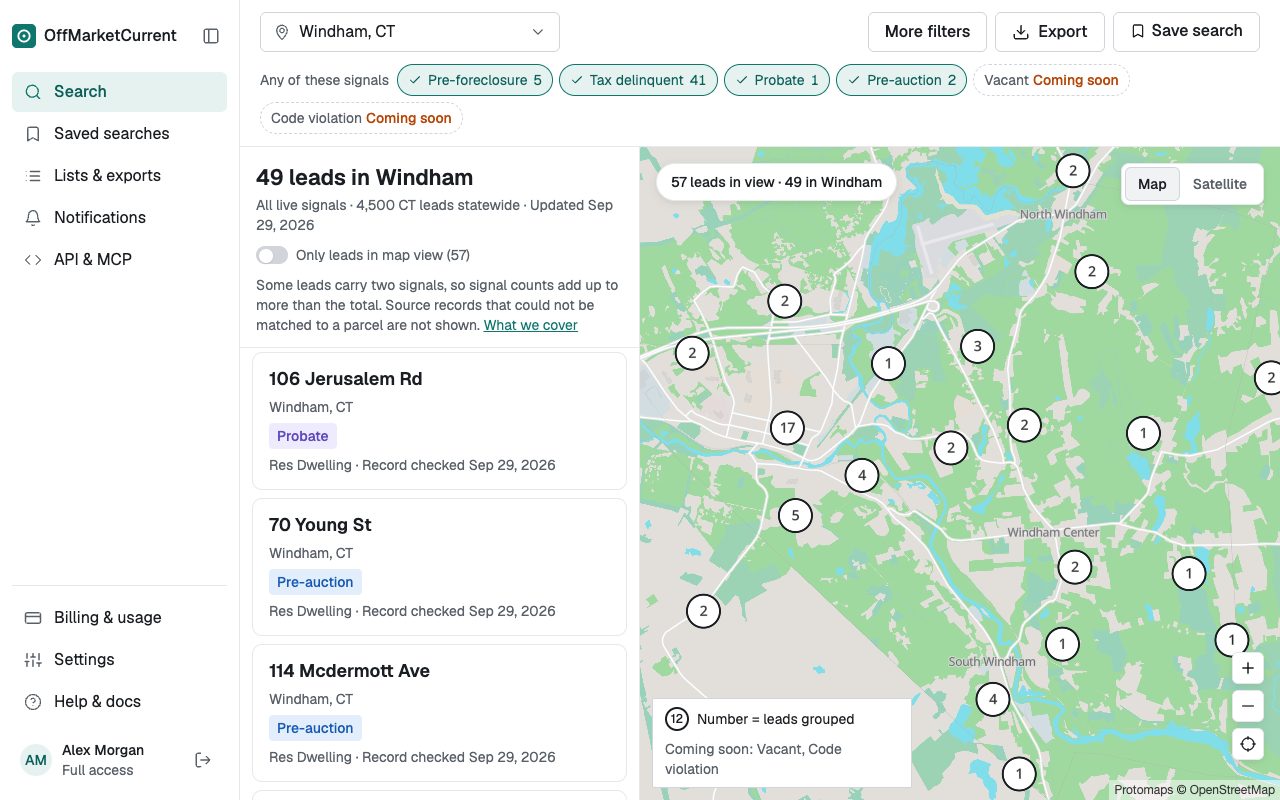
Screenshot: Search: the Save search button in the toolbar 2Choose alert frequency
In the “Save search” dialog, keep or edit “Name”, choose “Email me about new leads” (Instant, Daily, Weekly, or Off), and choose “Save search”. Then choose “Open saved search” to see the first result.
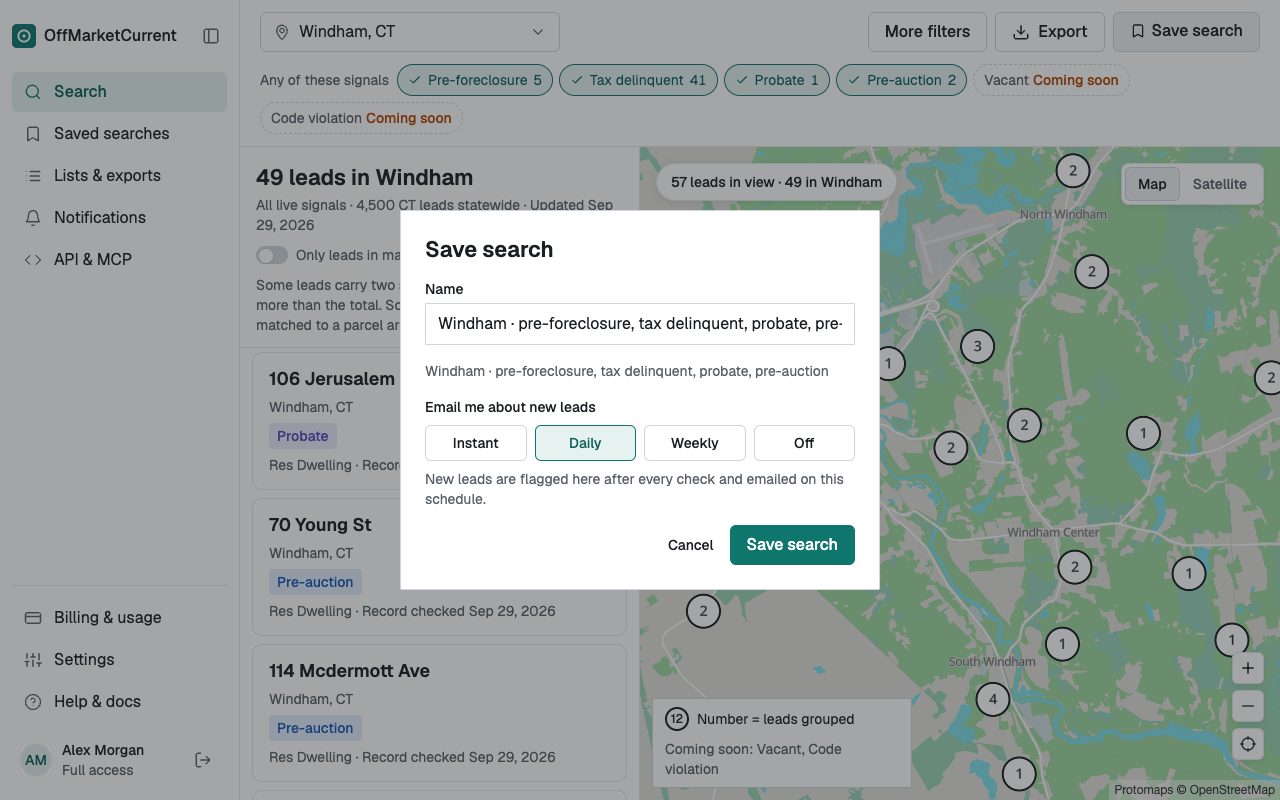
Screenshot: Save search: name it and pick an alert frequency 3View saved searches
Choose “Saved searches” in the left rail (“Saved” on a phone). Each card shows the name, a count such as “3 new” or “12 leads”, and the “As of” date. The tabs are “All”, “New leads”, and “Alerts off”.
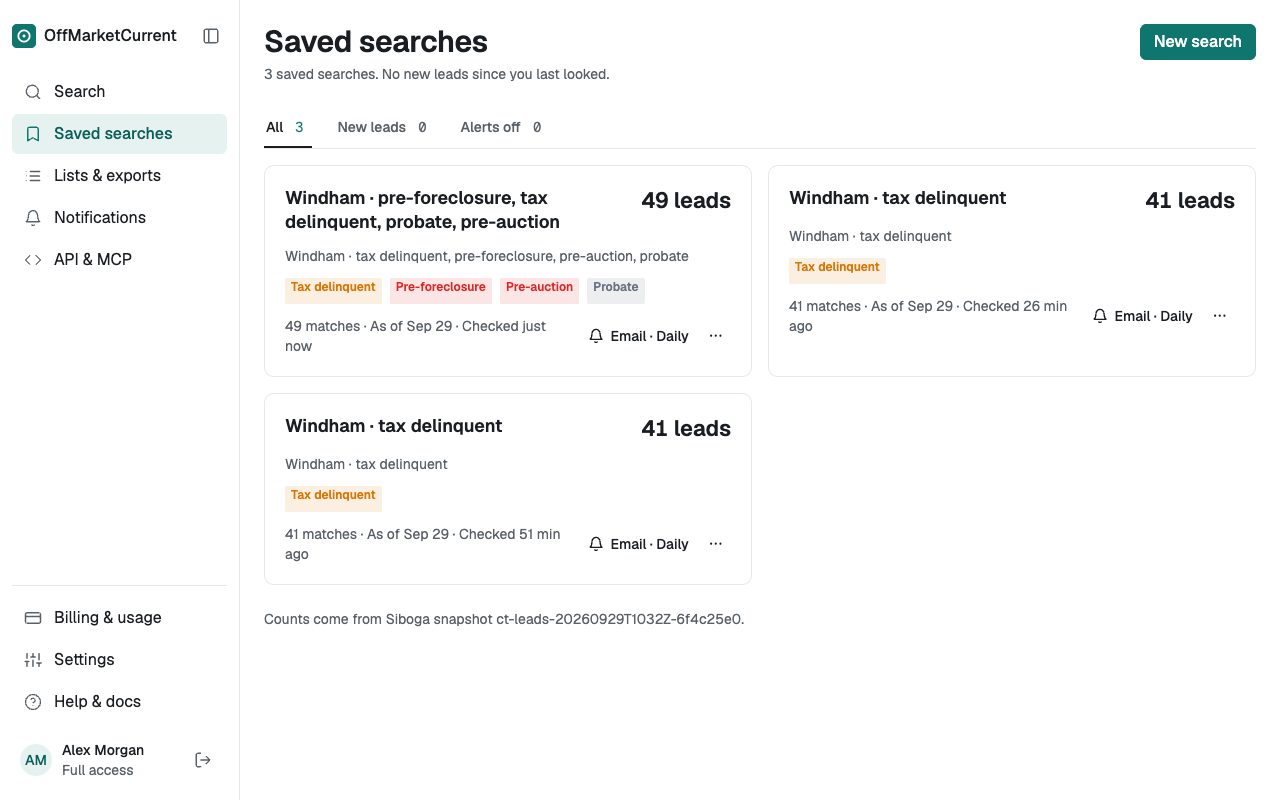
Screenshot: Saved searches: cards, new-lead counts, and tabs 4Track new leads
Open a saved search. It re-checks the data, and leads that were not in the last result carry a “New” tag. Choose “Show new only”, “Mark seen” on one lead, or “Mark all as seen”.
5Manage your search
To change an alert, choose the “Email · Daily” button on the card and pick a new frequency. The “⋯” menu on the card has Open, Rename, and Delete; deleting a search keeps the properties you added to lists.
6Know where alerts appear
Alerts appear as flags in Saved searches and as entries in Notifications, and arrive by email at the frequency you chose.
7Add properties to a list
To keep a lead, choose “Add to list” in its side panel or on its detail page, then pick a list or create one. Your lists are under Lists, where you can export them.
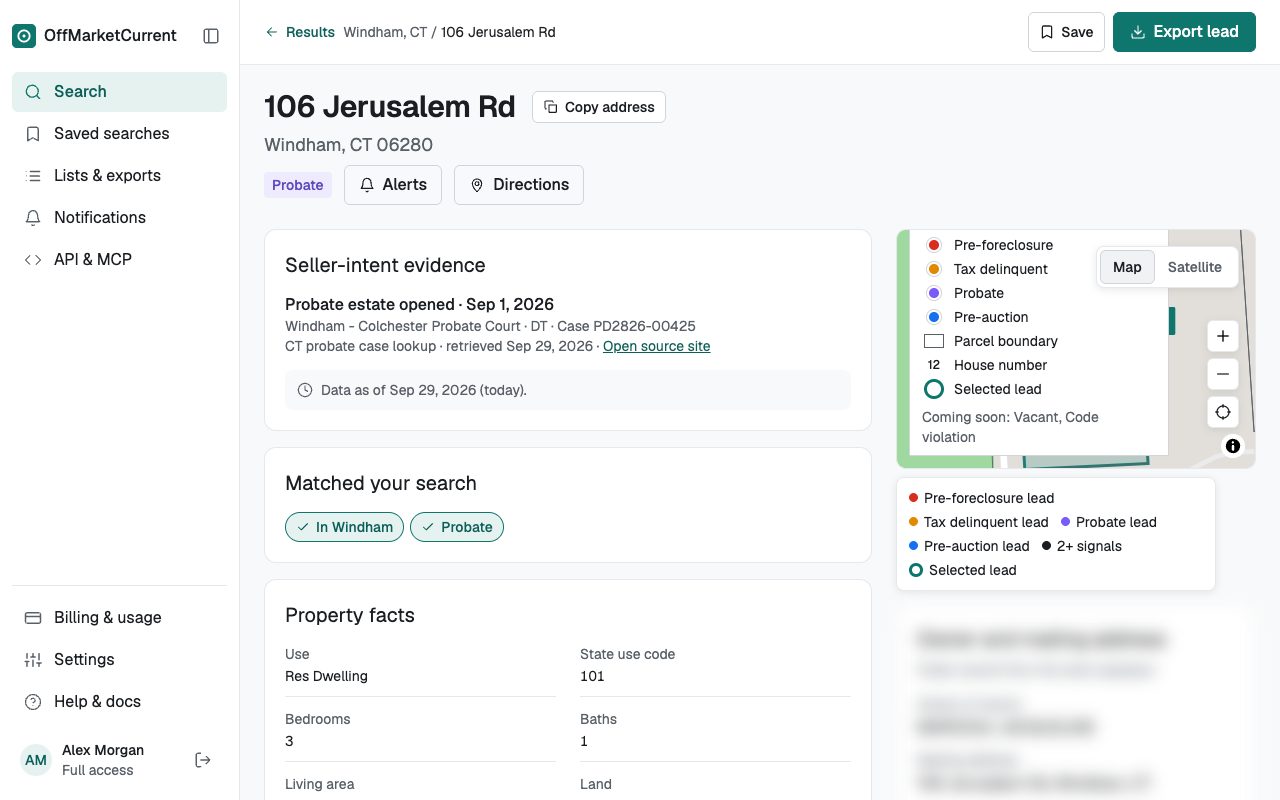
Screenshot: Lead detail: the Add to list button in the top bar
Saved-search limits are 25 on Basic, 100 on Pro, and 500 on Scale. Saved searches come with Basic and above.
Still stuck?
A person can look at your account.