
Export leads to CSV
Download the leads in a search as a spreadsheet, or one lead at a time.
1Start an export
On Search, set the Place box and filters, then choose “Export” in the toolbar. A free account sees it locked with “Paid plan”, and on a phone you reach the same page with “Lists” in the bottom bar.
2Check export details
The “Lists & exports” page opens with your search, for example “From your search: Windham, any live signal”. It shows the lead count and the “Data as of” date; choose “Change the search” to adjust the filters.
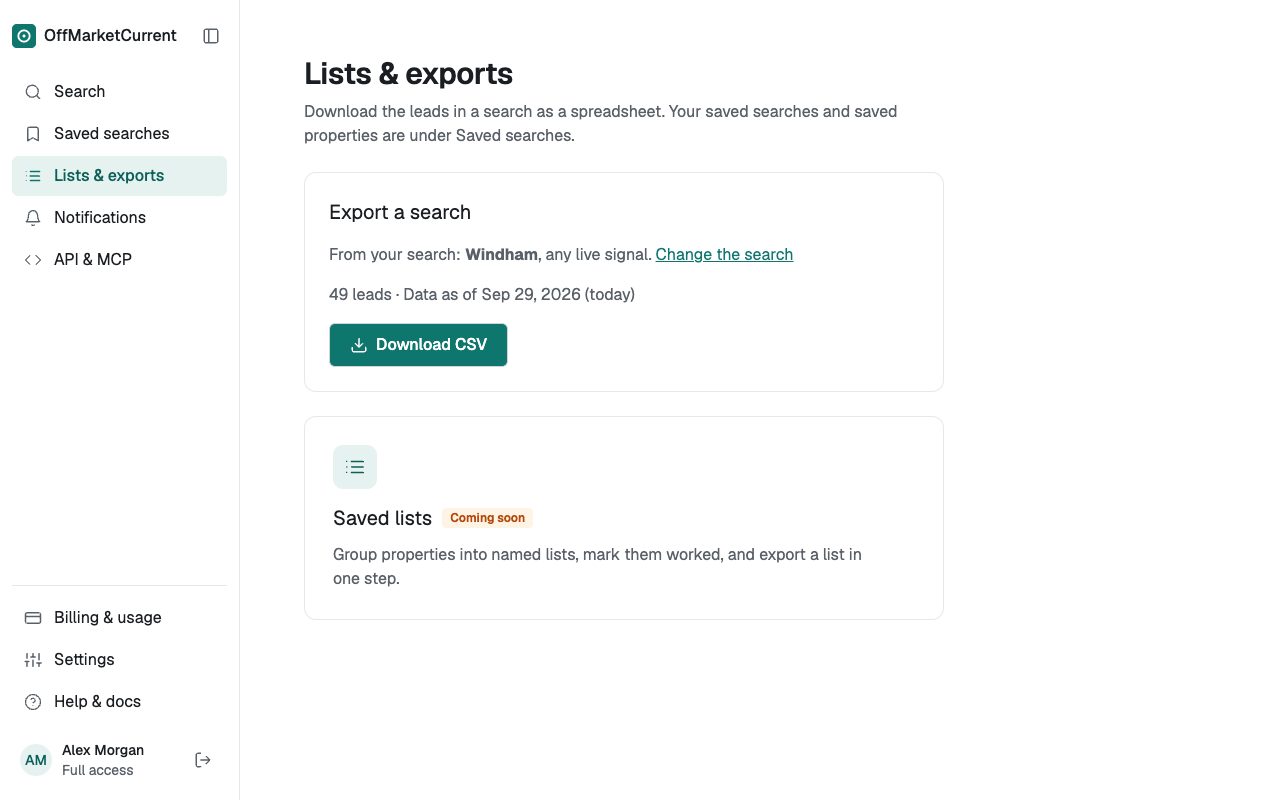
Screenshot: Lists & exports: the search summary and Download CSV 3Download CSV
Choose “Download CSV”. The page shows “Preparing” progress, then “Downloaded N leads”, and the file is named offmarketcurrent-<data date>.csv. It opens in Excel, Numbers, or Google Sheets.
4Understand CSV columns
Each row has Parcel ID, Address, Town, Owner, Use, Signals, Latest signal, and Snapshot as of. One file holds up to 2,000 leads, so narrow by town to export more areas as separate files.
5Export a few leads
To export a handful of leads, add them to a list on their detail pages, then export the list from Lists. For a whole search, use Export in the search toolbar.
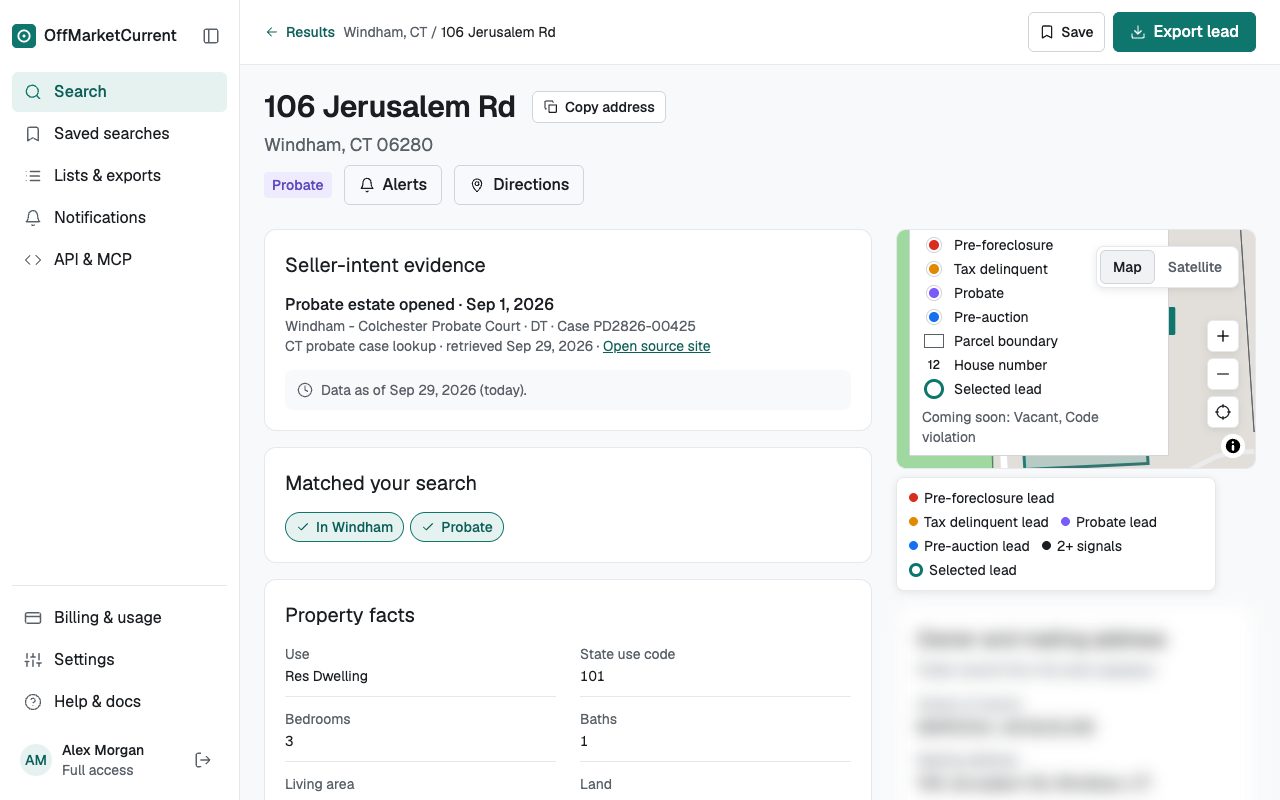
Screenshot: Lead detail: add the lead to a list to export it 6Bring leads into your CRM
Import the CSV into your CRM, such as Follow Up Boss or HubSpot, or read leads into your own tools with an API key (see the API guide).
Use Saved searches and “Mark worked” to track the leads you have handled.
To download your own account data instead, see the Account and privacy guide.
Still stuck?
A person can look at your account.