
Search and filter leads
Use the Place box, More filters, and the signal row to narrow the lead list.
1Open the search screen
Choose “Search” in the left rail (the bottom bar on a phone). The heading shows how many leads match your search.
2Filter by place
Open the Place box at the top left, then type a town or pick one from the list. Choose the whole-market option at the top of the list to search every town.
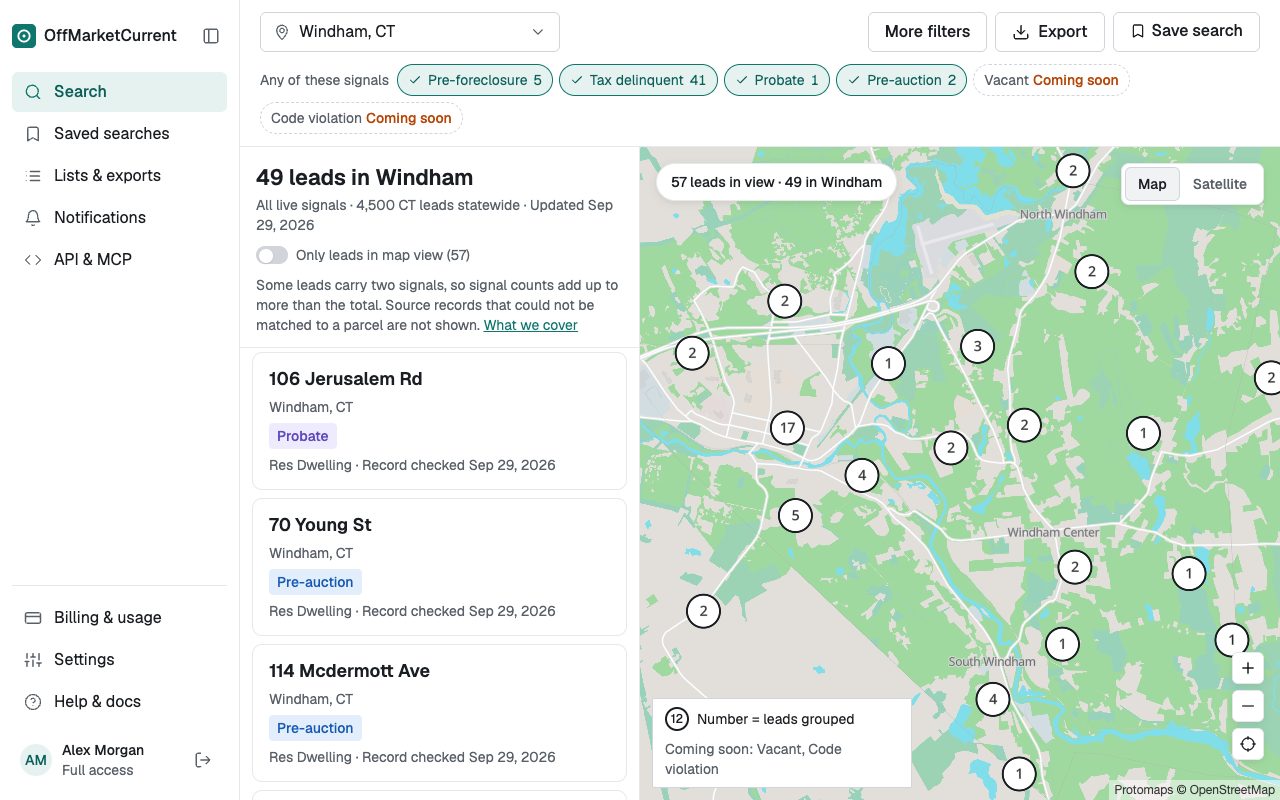
Screenshot: Search: one town chosen in the Place box 3Use text filters
Choose “More filters”, type part of a street or an owner name under “Street or owner name contains”, and choose “Apply”. The button then reads “More filters · 1”; choose “Clear” to remove the filter.
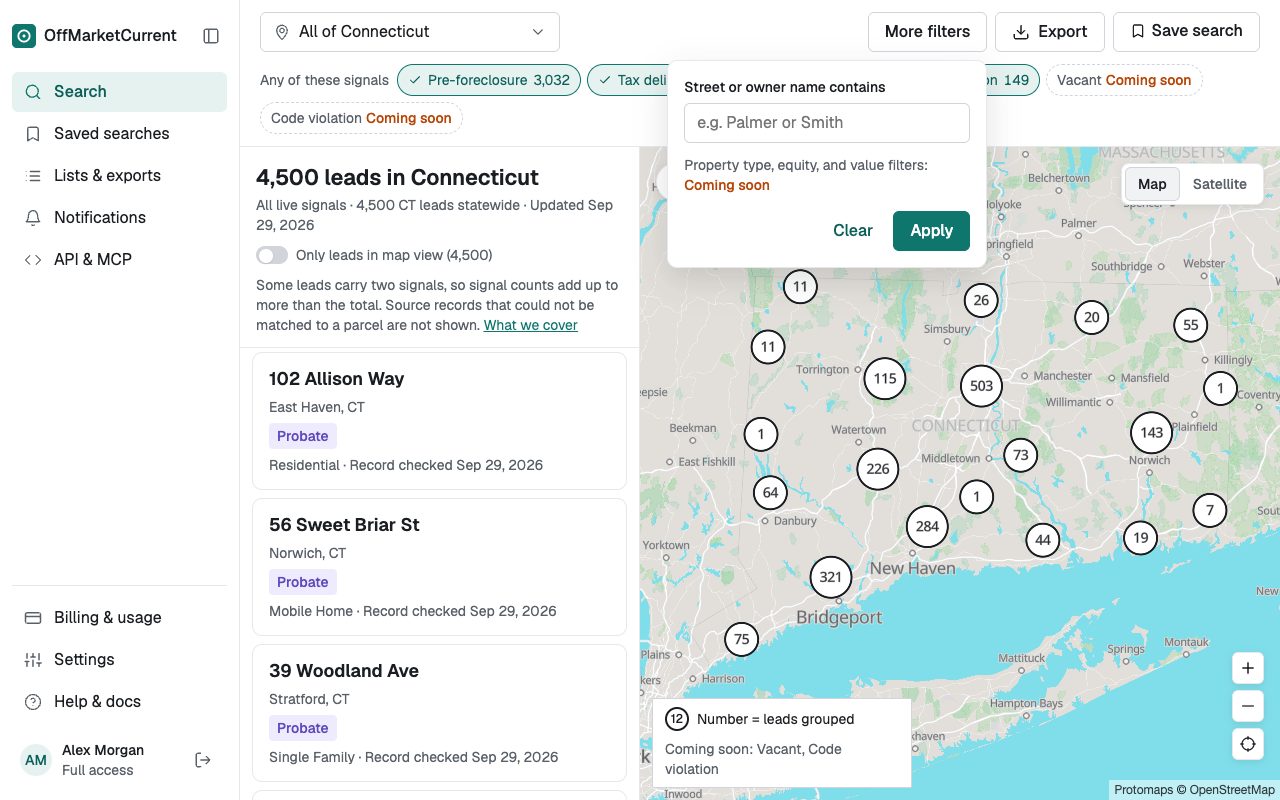
Screenshot: Search: More filters holds the street or owner text field 4Use signal filters
The signal row holds one button for each live signal: “Pre-foreclosure”, “Tax delinquent”, “Probate”, and “Pre-auction”. All four start on, and a search shows leads with any signal that is on. Choose a button to turn that signal off or on; the last one stays on.
5Share your search
The page address holds your search, so you can bookmark it, reload it, or send the link to a teammate who has an account.
6Handle empty results
If nothing matches, the list says so and offers towns that have leads. Choose one, or clear the filter.
A free account sees 3 leads per search, and the street and owner text filter works on paid plans only.
Still stuck?
A person can look at your account.